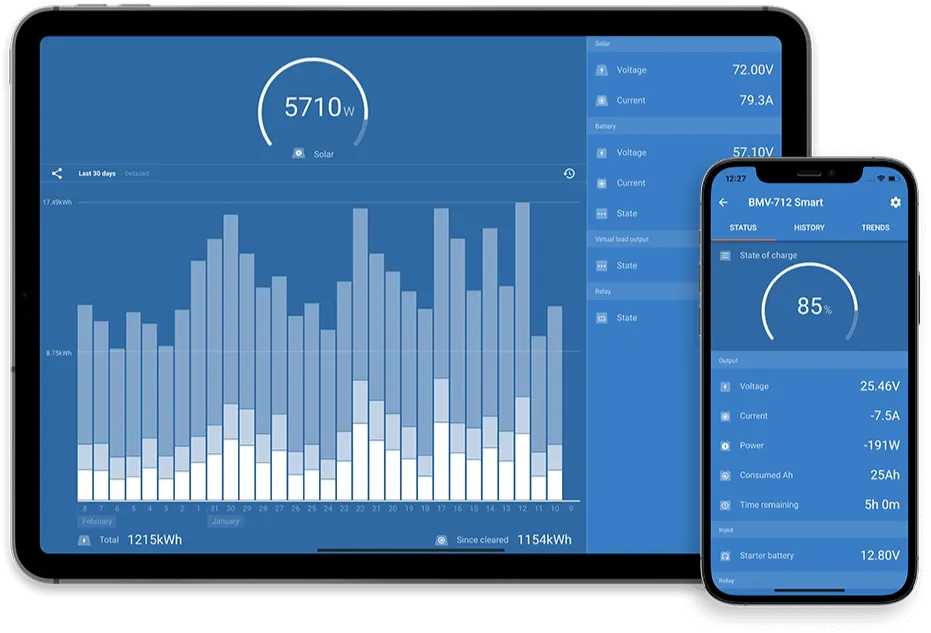
Victron Wi-Fi Reconnect
Depending on your setup, you can reconnect using the physical screen on your system or the VictronConnect app on your phone.
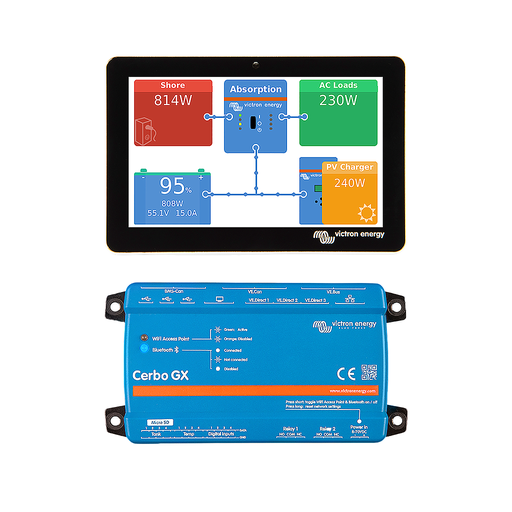
Using the Touch Screen (Cerbo GX / Color Control)
-
Open the Main Menu
Tap the screen once to activate it, then press the Menu button.
-
Go to Settings
Scroll down the list and select Settings.
-
Open Wi-Fi Settings
Scroll until you find Wi-Fi and tap it.
-
View Networks
Select Wi-Fi networks. The system will scan for nearby signals.
-
Select Your Network
Tap your home Wi-Fi name from the list.
-
Enter Password
Carefully type your password (it is case-sensitive). Tap the checkmark when finished.
-
Confirm you are connected.
Once connected, the screen will display the network name and signal strength.
Using the VictronConnect App
Use these steps if you do not have a screen or prefer using your phone/tablet.
-
Open VictronConnect
Ensure Bluetooth is enabled on your phone and stand near your Cerbo GX/system.
-
Select Your Device
Find your Cerbo GX (or relevant GX device) in the device list and tap to connect.
-
Enter Settings
Tap the cog icon in the top right corner.
-
Navigate to Networking
Tap on Network from the settings menu.
-
Select Wi-Fi
Ensure the “WiFi” toggle is ON, then tap on Wi-Fi networks.
-
Connect
Find your home Wi-Fi in the “Discovered networks” list.
-
Enter Password
Type in your Wi-Fi password and tap OK/Connect.
-
Confirm you are connected.
The app will show “Connected” once the link is established.