
Sigenergy Wi-Fi Reconnect
Step by Step Guide
For Sigenergy inverter and battery system – in any combination of inverter plus modules.
-
Check your Wi-Fi signal strength
Stand next to your SigenStor system and check your phone to confirm your home Wi-Fi network appears in the list.
If the Wi-Fi signal is weak or not visible, install a Wi-Fi extender or use a wired Ethernet connection.
-
Restart your Sigenergy inverter
Restarting the system resets communication and enables the built-in Wi-Fi hotspot needed for reconnection.
Turn off the AC supply. This AC switch location will be different if you have backup functionality or not.
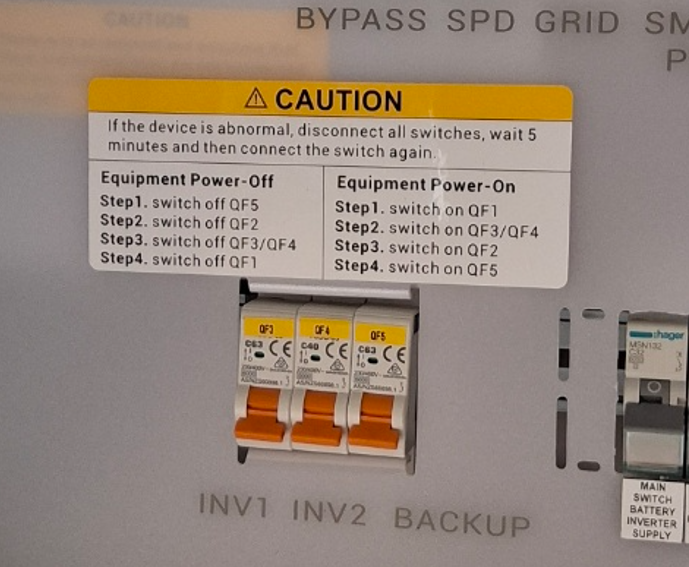
For Backup systems (Gateway installed):
- This switch is located inside the Sigenergy Gateway. Find the switch labelled INV1 and/or INV2 and flip it OFF.
- In some cases, the installer may add an additional main switch for the battery inverter supply inside the gateway. This can be turned off instead
For No Backup system:
- Turn the AC supply OFF using the main switch inverter battery supply located inside the main switchboard or the inverter AC isolator.
Turn off the DC switch. The DC switch is inside the small cover on the left side of the inverter. Lift the cover upward to remove it.
Inside, turn the DC switch to OFF.
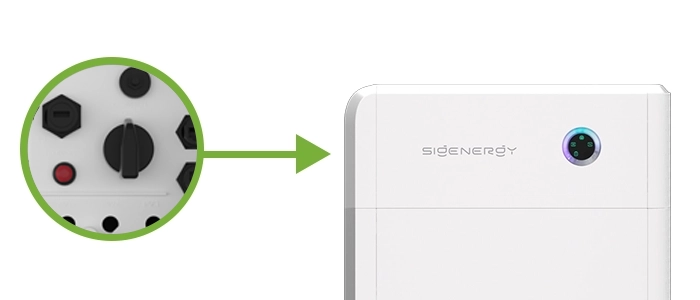
Wait a few minutes until the inverter fully shuts down. Then restart in reverse order.
Turn the DC switch ON.
Turn the AC / INVERTER SUPPLY switch ON.
Allow several minutes for the system to power up.
This restart will automatically enable the inverter’s Wi-Fi hotspot for reconnection.
-
Open the mySigen app
On your phone, launch the mySigen app.
If you do not have it installed, download it from the App Store or Google Play.
-
Go to Settings
Tap Settings in the bottom-right corner of the app.
-
Open Network Configuration
Under More Settings, tap Connectivity.
Tap Next to begin the setup and follow the on-screen instructions.
-
Scan the QR code on the inverter
The app will open your phone’s camera.
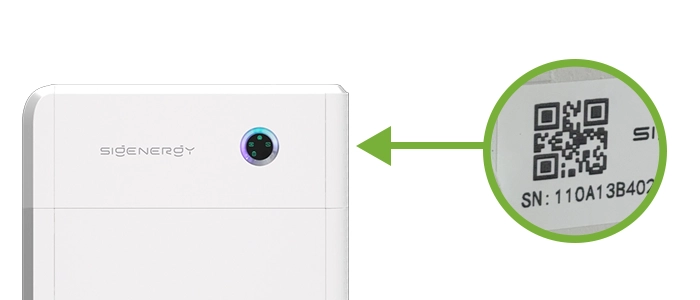
Scan the QR code located on the right side of the inverter, next to the serial number. You will need to remove the cover to access it.
-
Choose to connect via hotspot
When prompted, select ‘No, I want to connect device hotspot’.
This option allows the app to connect directly to the inverter’s Wi-Fi hotspot.
-
Connect to the inverter hotspot
Tap Next, then Connect.
Your phone will automatically join the Sigenergy hotspot (usually named Sigen_xxxxxx).
If a password is requested, enter 12345678.
Once connected, the app will search for available Wi-Fi networks.
Select your home Wi-Fi network, enter your password (case-sensitive), and tap Join.
-
Verify the connection
A tick mark will appear next to your Wi-Fi network once the connection is complete.
Tap Finished to close the setup.
The inverter will now connect to your home Wi-Fi and resume sending live data to the mySigen app.
Troubleshooting Tips
Double-check your Wi-Fi password for accuracy.
Ensure your router’s 2.4 GHz network is enabled (SigenStor cannot use 5 GHz).
If the hotspot does not appear, repeat Step 2 to restart the system.